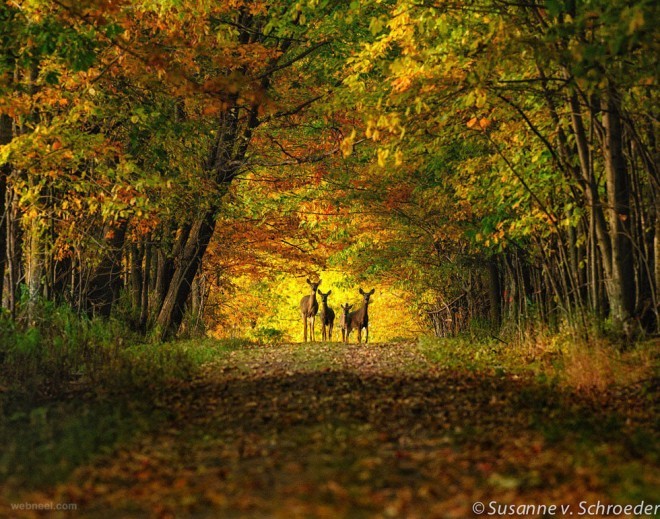

This is the most basic example of cropperimplementation. By default cropping area is centered and takes 80% of image space. The image is resizable, but should be wrapped in block element with fixed height.
This example demonstrates default options, but with hidden black modal layer above the cropper. To hide the modal set modaloption to false. If visible, modal color can be easily changed in css.
This example demonstrates cropped area that has fixed positionand can't be moved. Although it isn't movable, other options remain available: resize, dragging, callbacks, aspect ratios, modal etc.
This example demonstrates cropped area that has fixed sizeand can't be resized. Although it isn't resizable, other options remain available: moving, dragging, callbacks, aspect ratios, modal etc.
In this example cropping zone is not rendered automatically when initialize and available only on a new drag. By default, cropping zone is always visibleand can be hidden by setting autoCropoption to false.
In this example the user can't drag the image within container, but can drag cropping area.. By default, this feature is disabled and can be enabled by setting movableoption to false.
Thix example demonstrates fixed 16:9dragging (selection) ratio. By default, aspect ratio isn't specified and is free. Optional aspect ratios are also available and can be specified using aspectRatiooption.
Thix example demonstrates fixed 4:3dragging (selection) ratio. By default, aspect ratio isn't specified and is free. Optional aspect ratios are also available and can be specified using aspectRatiooption.
This example demonstrates the minimumwidth and height (px of original image) of the cropping zone. Better use this option only when you are sure that the image has this minimum width and height. By default, both values aren't specified.
This example demonstrates the ability to disable zoomfeature, it works in both options: disables zoom on scroll and zoom on touch. By default, image cropper is zoomable, to disable zooming set zoomableoption to false.